
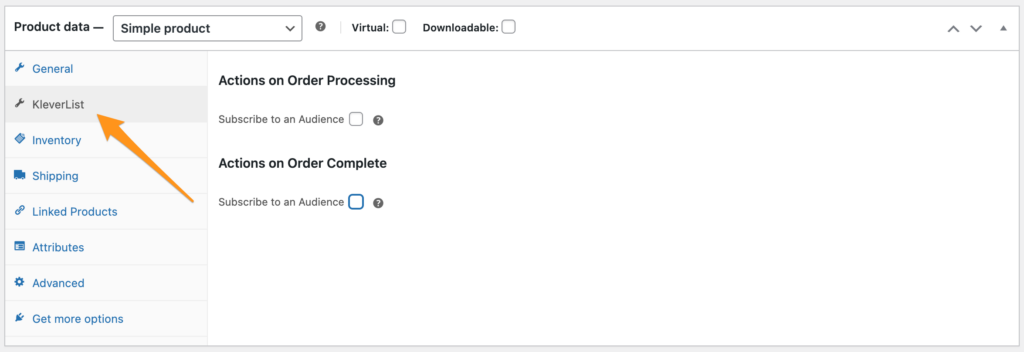
The “Assigning Products to Audience” functionality within KleverList enables you to dictate how WooCommerce products interact with your Mailchimp audience. You can access this feature directly on the WooCommerce product detail page, located beneath the section detailing the product description.
| CONFIGURATION ITEMS | DESCRIPTION |
|---|---|
| Subscribe Options | Options to subscribe the user to an audience on specific products and order status. |
Method 1 – List Assignment on WooCommerce Product Detail
To activate this functionality, navigate to the WooCommerce product detail page, proceed to the additional options section by scrolling down, and find the KleverList tab.
Method 2 – Bulk Assignment
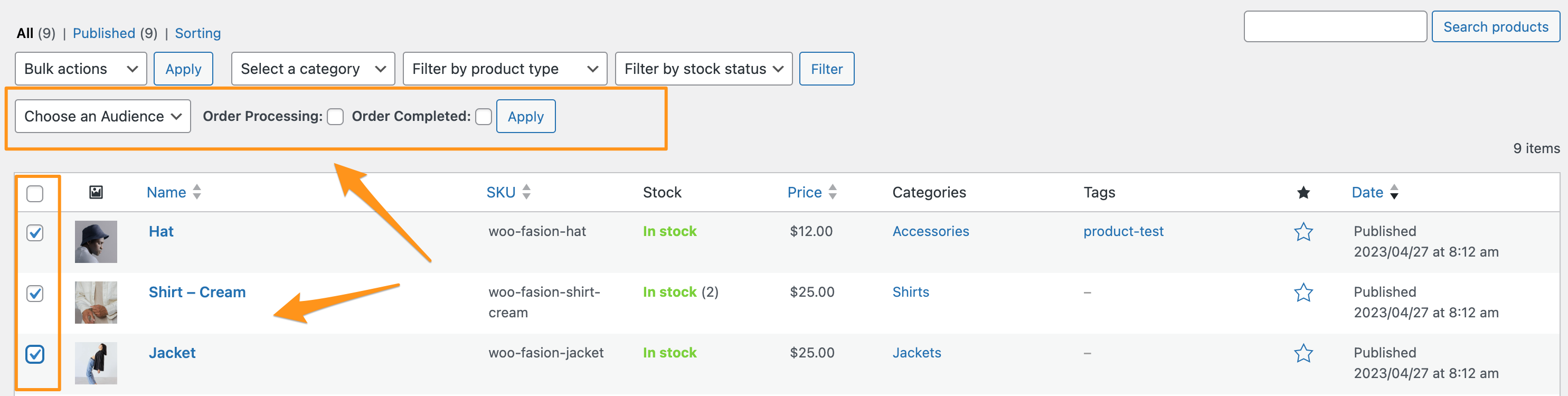
For Bulk Assignment, visit the “Products -> All Products” section in WooCommerce, and choose one or more products to assign to a specific list, whether for “Order Processing” or “Order Complete” status. The bulk selector is located beneath the standard WooCommerce bulk actions area.
After successfully assigning products to the audience, everything is set for you to begin selling and synchronizing orders and customers with the Mailchimp audience. This setup ensures that as you make sales, customer information and order details are automatically updated in Mailchimp, allowing for real-time engagement and personalized marketing efforts based on the latest transactions. You’re now fully equipped to enhance your marketing strategies and foster stronger customer relationships through timely and relevant communications.