
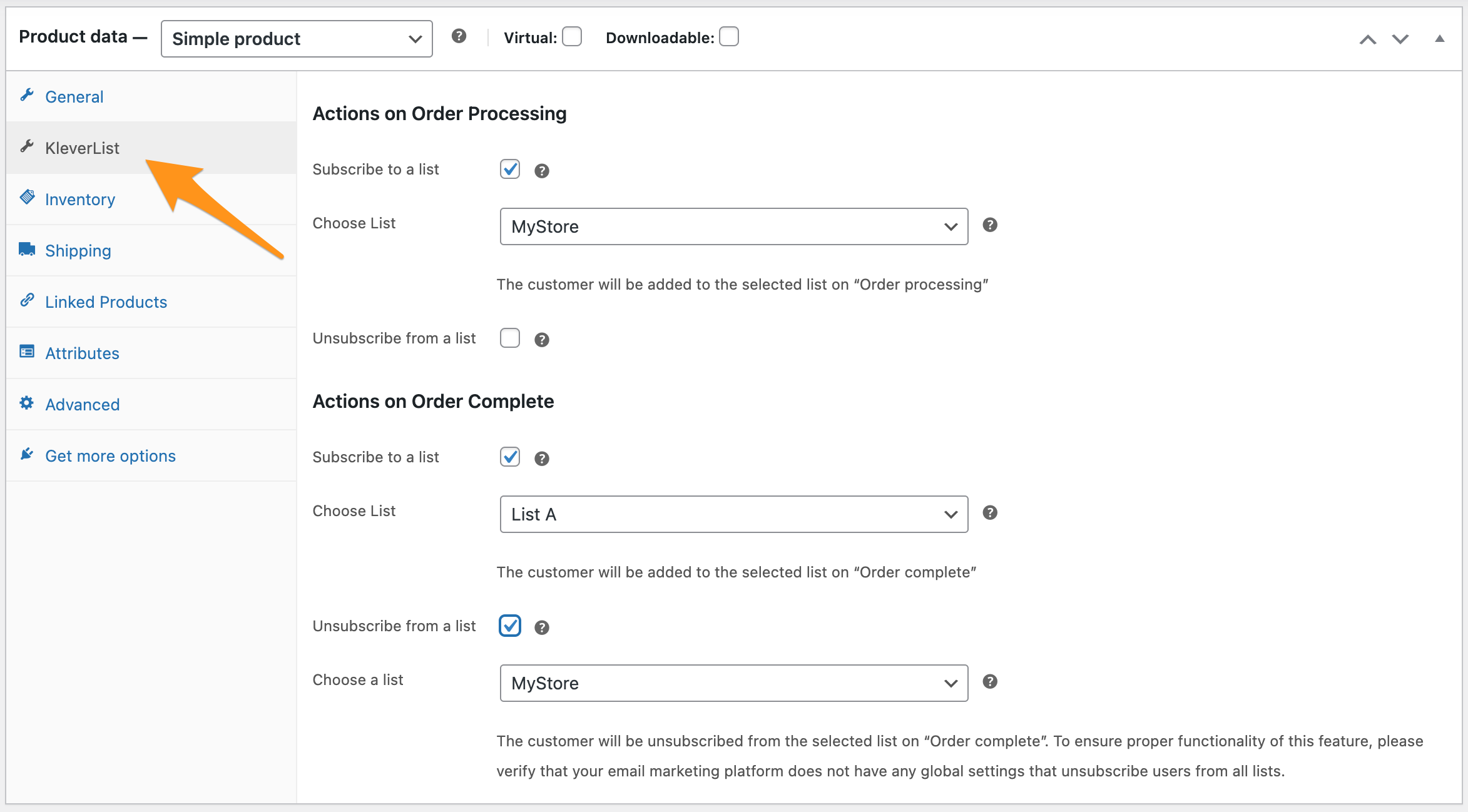
The “Assigning Products to Lists” feature in KleverList allows you to define the behavior of WooCommerce products in relation to your Sendy email lists. This feature is accessible on the WooCommerce product detail page, under the product description section.
| CONFIGURATION ITEMS | DESCRIPTION |
|---|---|
| Subscribe Options | Options to subscribe or unsubscribe the user to a list on specific products and order status. |
Method 1 – List Assignment on WooCommerce Product Detail
To enable this feature, Go to the WooCommerce product detail page, scroll down to the additional options section and locate the KleverList tab.
Method 2 – Bulk Assignment
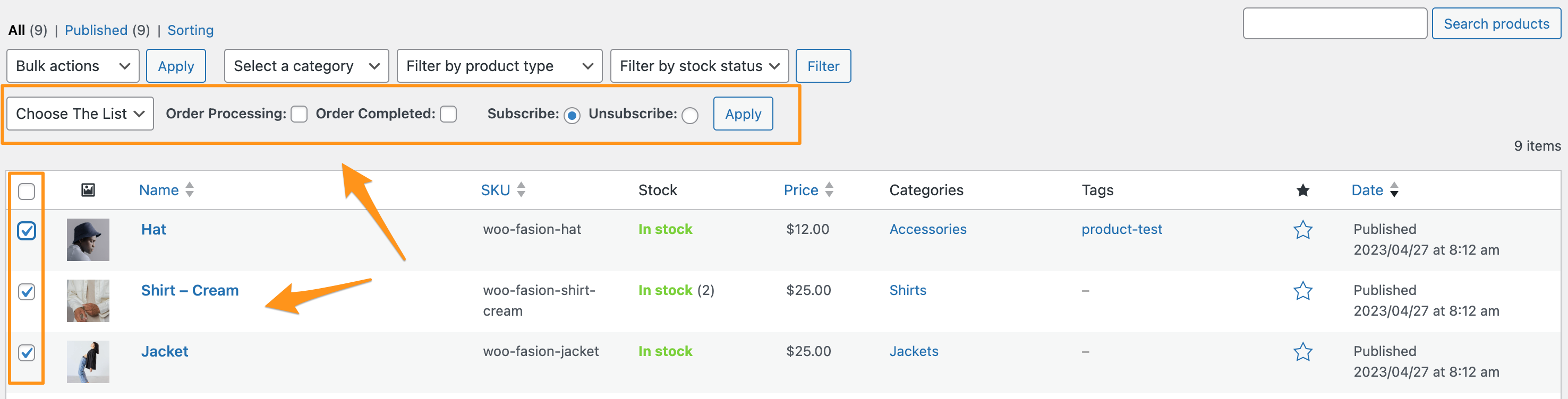
To use the Bulk Assignment, go to the WooCommerce “Products -> All Products” page, and select one or more product to a specific list either on “Order Processing”, or “Order Complete”. You can find the bulk selector below the default WooCommerce bulk actions.
Available Options
Actions On Order Processing
| Name: | Subscribe |
| Mandatory: | No |
| Action: | Enable/Disable |
| Description: | Whenever a customer completes a checkout for a product, and the order status is “Order Processing”, they will be automatically subscribed to the selected Sendy list, allowing you to engage with them through targeted email campaigns. If the Resubscribe option in the General Settings is turned off, and the user is already in the list, but unsubscribed from the list, enabling the option will not automatically resubscribe them. |
| Available: | Free + Pro Versions |
| Name: | Unsubscribe |
| Mandatory: | No |
| Action: | Enable/Disable |
| Description: | When this feature is enabled, customers who complete the checkout for the product will be automatically unsubscribed from the selected Sendy list on order processing status. In Sendy, make sure that the unsubscribe setting is NOT set to “unsubscribe from all lists”, otherwise this feature will not work properly. |
| Available: | Pro Version |
Actions on Order Complete
| Name: | Subscribe |
| Mandatory: | No |
| Action: | Enable/Disable |
| Description: | Whenever a customer completes an order for this product, they will be automatically subscribed to the selected Sendy list, allowing you to engage with them through targeted email campaigns. If the Resubscribe option in the General Settings is turned off, and the user is already in the list, but unsubscribed from the list, enabling the option will not automatically resubscribe them. |
| Available: | Free + Pro Versions |
| Name: | Unsubscribe |
| Mandatory: | No |
| Action: | Enable/Disable |
| Description: | By enabling this feature, customers who purchase the product will be automatically unsubscribed from the selected Sendy list upon order completion, ensuring that their email preferences are updated accordingly. In Sendy, make sure that the unsubscribe setting is NOT set to “unsubscribe from all lists”, otherwise this feature will not work properly. |
| Available: | Pro Version |
After completing the assignment of products to specific lists, you are all prepared to initiate sales and seamlessly sync orders and customer details to your Sendy lists. This arrangement guarantees that with each sale, the relevant customer data and order information are promptly reflected in Sendy, facilitating immediate engagement and tailored marketing initiatives grounded in the most current transaction data. You are now ready to elevate your marketing approaches and build more meaningful connections with customers through targeted and timely interactions.